

You can host a Palworld dedicated server on a Windows PC using the free server tool from Steam. Install it, configure the server, allow its game traffic through Windows Firewall and your router, then test a connection from outside your home network. The PC must stay powered on and connected while your friends play. PalCommand is an optional Windows manager for that server; it does not rent you a machine or replace your internet connection.
Check the machine and connection first
Pocketpair’s current requirements list a 64-bit Windows system, recommend four or more CPU cores, list 16 GB of memory and recommend more than 32 GB. They warn that an 8 GB system can start but is more exposed to out-of-memory crashes. Leave room for Windows and any game client you run on the same PC. An empty world’s memory reading is not a capacity estimate for an established world with players and mods. Use an SSD and leave free disk space for updates and separate backups. Pocketpair requirements.
Confirm that you can change the router settings if friends will connect over the internet. With carrier-grade NAT, a router port-forward alone may not make your PC reachable; ask your ISP about inbound connectivity before assuming the server is broken. Do not publish administrative ports while troubleshooting a game connection.
Install the dedicated server
In Steam, enable Tools in the Library filter, find Palworld Dedicated Server, and install
it. Start it once using the dedicated-server option. Pocketpair also documents installation
through SteamCMD, using anonymous login and app ID 2394010, for operators who prefer command-line
management. Use one installation directory per server.
Official deployment instructions.
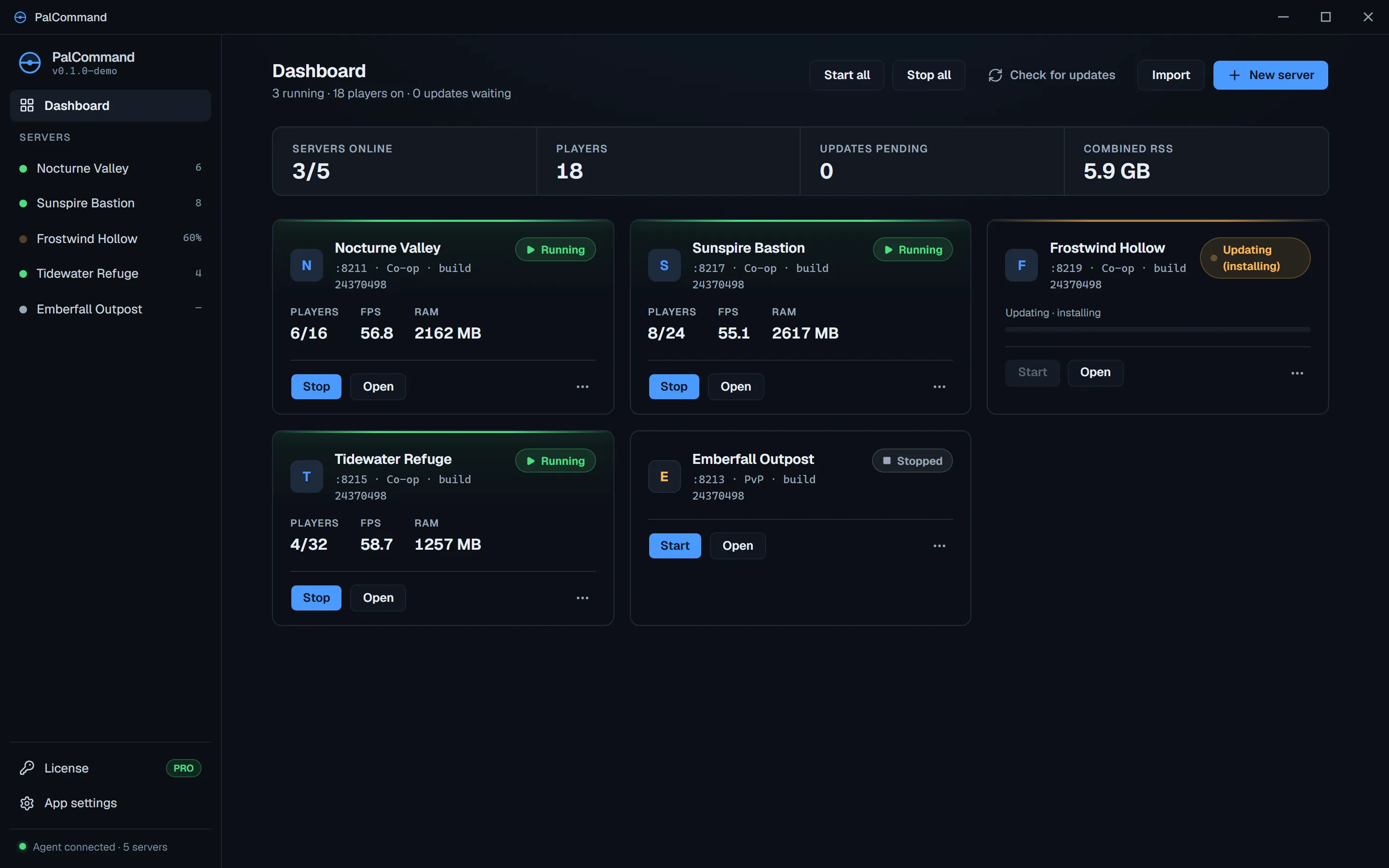
If you use PalCommand instead, New server on the Dashboard creates a separate installation. Choose its name and install root, check the available disk space, and let installation finish. PalCommand downloads SteamCMD when needed. See the first-server workflow for the individual controls. Check download availability and pricing before choosing the app; the free Steam server tool and PalCommand’s planned subscription are different products.
Configure the world while the server is stopped
After the initial start has created its folders, stop the server gracefully before editing configuration. The active Windows file is:
Pal\Saved\Config\WindowsServer\PalWorldSettings.ini
For a new configuration, copy the supplied DefaultPalWorldSettings.ini into that location.
Do not overwrite an existing configuration without saving a copy. Change values in the active
file; editing the default template alone does not configure the server. Set a recognizable
server name and, for a private world, a server password. Keep the administrative password
separate from the password you share with players.
Pocketpair configuration reference.
Keep the OptionSettings=(...) structure intact. In our Windows tests, the server rewrote the
active configuration from its in-memory settings when it shut down. Editing it while running
could therefore lose the edit. PalCommand’s Settings page provides a review of changed values;
check the displayed result after applying them.
Allow game traffic and test it
The default game port is UDP 8211. Allow that traffic in Windows Firewall for the server and forward the configured UDP game port on the router to the PC’s local address. If you chose a different game port, use that value consistently. A stable local address or DHCP reservation keeps the router rule pointing at the correct PC.
Test in stages: connect from the host or local network, then have a friend on another internet connection try the public address and game port. A successful local join does not prove the router path works. Pocketpair’s connection guide shows the direct-address field and community server browser. Console crossplay has different discovery requirements; use the crossplay guide for those platforms. Connecting to a server.
The REST port is an administrative interface, not the players’ game connection. Our Windows tests observed it listening on all interfaces. Do not forward it to the internet. If a join fails, check the selected protocol and port, the PC’s address, firewall scope, client/server versions and ISP connectivity before adding more open ports.
Verify the world before leaving it unattended
Join, save, stop gracefully, restart, and confirm that your progress returns. Keep a backup outside the active world directory before adding mods or making major changes. Plan when updates can interrupt play and prevent Windows sleep from unexpectedly taking the host offline. Continue with the server-update guide.
What we checked and what can change
The installation, hardware and connection references above were reviewed against Pocketpair’s documentation labelled 1.0.3 on 5 September 2026. The Windows configuration-write and REST binding observations come from our 31 July 2026 checks on Steam build 24466863. These runtime checks were not repeated for 1.0.3 during this editorial review. Router behaviour, player load and mod compatibility depend on your environment; verify those with your own server.
Continue with the PalCommand workflow, see the related server-management features, or read another guide.