

Update a Palworld dedicated server in a maintenance window: warn players, save the world, stop the server gracefully, and verify a separate backup before updating the installation. Restart and check the game version, world and player access before reopening it. This reduces avoidable risk; no update procedure can guarantee that a new game build or mod will preserve every world.
This guide is about Palworld server updates. Updating the PalCommand desktop app is a different operation; see PalCommand app updates.
Confirm what needs updating
Check the game’s version and the server installation you intend to update. Client/server version mismatches can prevent joining. If several servers run on the same PC, identify each installation directory and schedule maintenance separately.
PalCommand compares Steam’s public build ID with the installed build. On a healthy server, Update checks first and reports when it is already current. Verify files is the repair operation that asks Steam to check installed files; it is not necessary for every routine update. Do not assume that a Steam file check validates your world or third-party mods.
Warn players, save and stop
Tell players when the interruption will happen. With the game’s admin permissions, Pocketpair
documents /Save and /Shutdown [Seconds] [MessageText]. Allow the graceful shutdown to finish
and confirm the process has exited before changing files. /DoExit is a force-stop command,
not the first step of ordinary maintenance.
Pocketpair command reference.
In our Windows REST tests, the shutdown message was displayed once when the request was accepted; the server did not supply a repeated countdown. If you need several warnings, send them explicitly or use a manager’s warning schedule. PalCommand handles its own announcements and save/stop sequence. If it reports that the server could not stop, resolve that condition before updating the installation under a running process.
Back up the world and configuration
After the server has stopped, make a separate backup of the active world and its player files, plus the Windows server configuration. Typical locations relative to the installation are:
Pal\Saved\SaveGames\0\<world GUID>\
Pal\Saved\Config\WindowsServer\
Store the backup outside the live install. Confirm that the archive opens, contains the intended world and configuration, and has a sensible size and timestamp. Keep earlier known-good backups as well. Palworld’s own snapshots inside a world folder do not protect against losing that folder or disk. The strongest recovery check is a restore rehearsal on a separate stopped installation, without replacing the only working copy.
PalCommand’s update path takes a world backup and configuration snapshot before handing the installation to Steam. It verifies the backup and stops if that step fails. See Backups & Restore for its archive and restore controls.
Update the intended installation
Use Steam’s update for the dedicated-server tool, or the SteamCMD installation path you already
use. Pocketpair documents server app ID 2394010 with anonymous SteamCMD login. Check the install
directory explicitly so a second installation is not updated by mistake.
Official deployment instructions.
Do not delete the saves or reset configuration to the default template as an update step. Preserve custom settings, and check the mod author’s current compatibility instructions if you use mods. Allow for download and backup disk space; a previous small update does not establish the size of the next one.
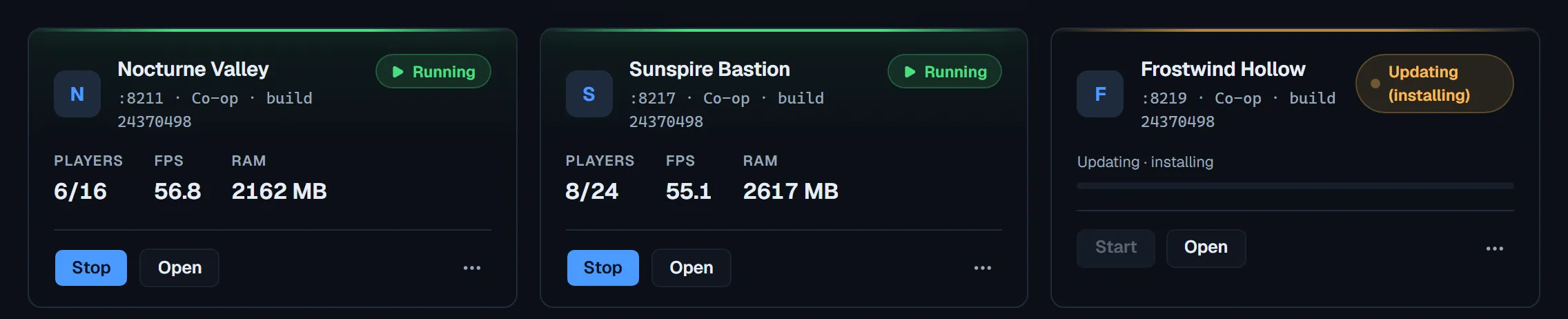
In PalCommand, start with Check for updates, then dispatch Update from the Dashboard. The server moves through draining, backup/snapshot, Steam update, build verification and relaunch. Use the Patch Day workflow to choose manual or automatic dispatch. If you want to review every game patch first, keep the policy manual.
Reopen only after checking the result
Confirm the reported game version, expected world and server settings. Join with a current client, inspect progress, and confirm saving still works. Check the event stream for backup, update and startup failures. A process marked running is useful evidence, but it does not prove that every mod or player’s data is correct.
If verification reports an unconfirmed build because Steam could not be reached, investigate it; do not present that as a confirmed match. If the world or mods fail, stop further writes and preserve the failure details. Restoring a world backup does not automatically reinstall an older server binary, and older binaries may not read saves touched by a newer version. Keep recovery and binary downgrade decisions separate.
Evidence and limits
The save/shutdown observations come from Windows 11 tests on server v1.0.2.100933, Steam build 24370498, in July 2026. The update-pipeline test used a simulated build change with a real server lifecycle; it did not wait for a new public Steam release. Later checks on 30 August used Steam build 24575149 to compare ordinary update and file-verification costs. No fixed update duration is promised here. Commands were reviewed against Pocketpair’s 1.0.3 documentation on 5 September 2026; a new live game-update drill was not run for this editorial review.
Continue with the PalCommand workflow, see the related server-management features, or read another guide.