


Palworld server manager features
Operate every server from one Windows app.
Launch, tune, patch, and recover Palworld servers without living in SteamCMD, giant configuration strings, or a pile of restart scripts.
01SET UP
Create, import, or migrate a server.
Start a new server, adopt an existing install without moving its files, or copy a co-op save through a reviewed preflight.
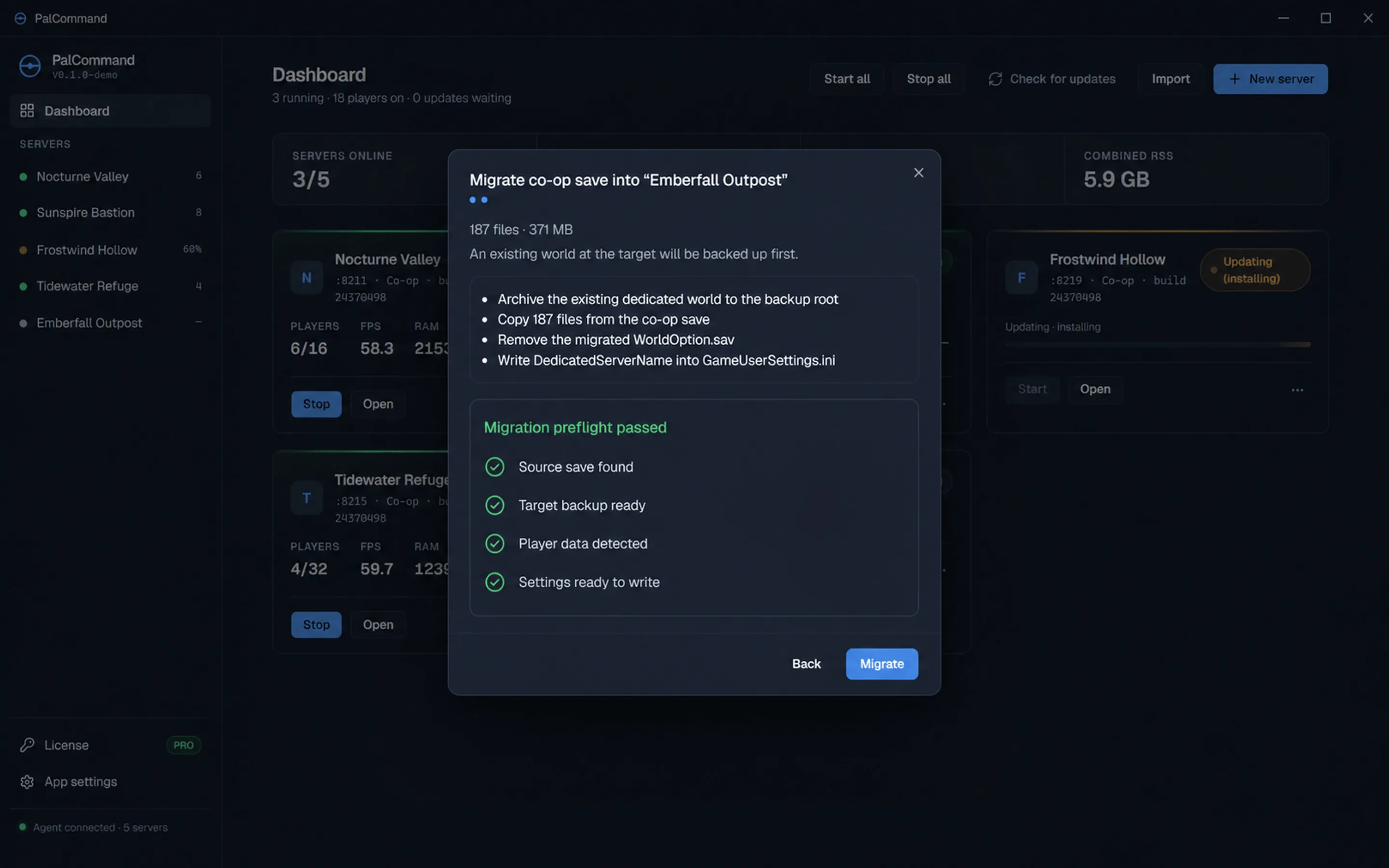
01Import and co-op migrationReview the source, destination, backup location, and host-character warning before copying.+
Point PalCommand at a server folder you already run and it adopts the install in place, keeping the settings that are already there. Nothing is downloaded and nothing is reinstalled. The report says how many settings were adopted, which ones had to be forced, a port collision with another managed server for example, and anything worth reading before you start it.
Moving a co-op world onto a dedicated server is a different flow, and a more dangerous one. The
wizard shows a read-only plan before it copies anything, then reports what it did, including
whether a WorldOption.sav was found and removed. That file matters: a co-op save carrying one
silently overrides the dedicated server’s ini, so your settings edits appear to do nothing.
Palworld’s host-GUID bug can move the host’s character under a placeholder ID; logging in before repair can silently delete the host’s Pals. A warning panel explains the risk, links two community repair tools, and requires an “I understand” toggle before Migrate becomes available. Check each tool’s project page for current game-version compatibility. PalCommand does not rewrite player ownership data itself.
02One machine, several serversEach server gets its own install, ports, saves, schedule, and status.+
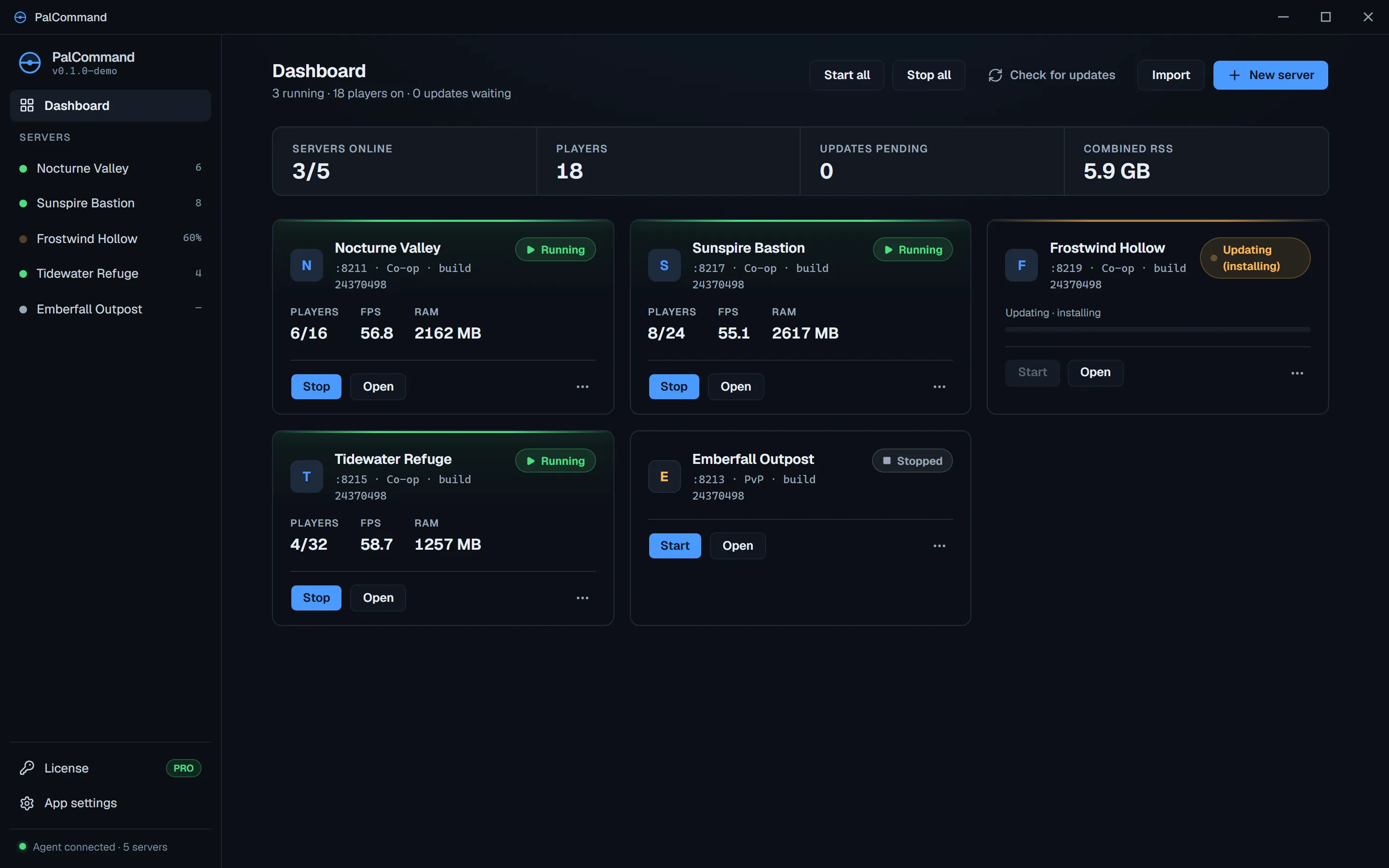
Palworld’s dedicated server cannot share one install directory between servers, so PalCommand gives each one a full install of its own: its own folder, its own save data, and its own game, query and control ports. It assigns and tracks those ports per server, so two servers on the same machine do not collide. Leave the port fields blank when you create one and they are allocated for you.
The dashboard is one card per server. Each card carries its status, its player count, its frame rate and its memory, and the strip above them totals the fleet: servers online, players connected, updates pending, combined memory.
Past that, nothing is shared except the machine. Every server keeps its own settings, its own backup history, its own schedule, and its own Discord webhook.
03Firewall, ports, and local checksCheck listeners, Windows Firewall rules, and current UPnP leases on the host PC.+
Windows Firewall reports whether a rule exists for this server’s ports and can add or remove one.
If that fails, usually because PalCommand is not running elevated, the error provides the exact
netsh advfirewall command to run yourself. Port mapping through UPnP is opt-in and router support
varies. The connection check confirms that the server is listening locally, the firewall rule
exists, and any UPnP lease is current.
The check covers the host PC only; it cannot test reachability from the internet.
02OPERATE
Monitor server health and player activity from one view.
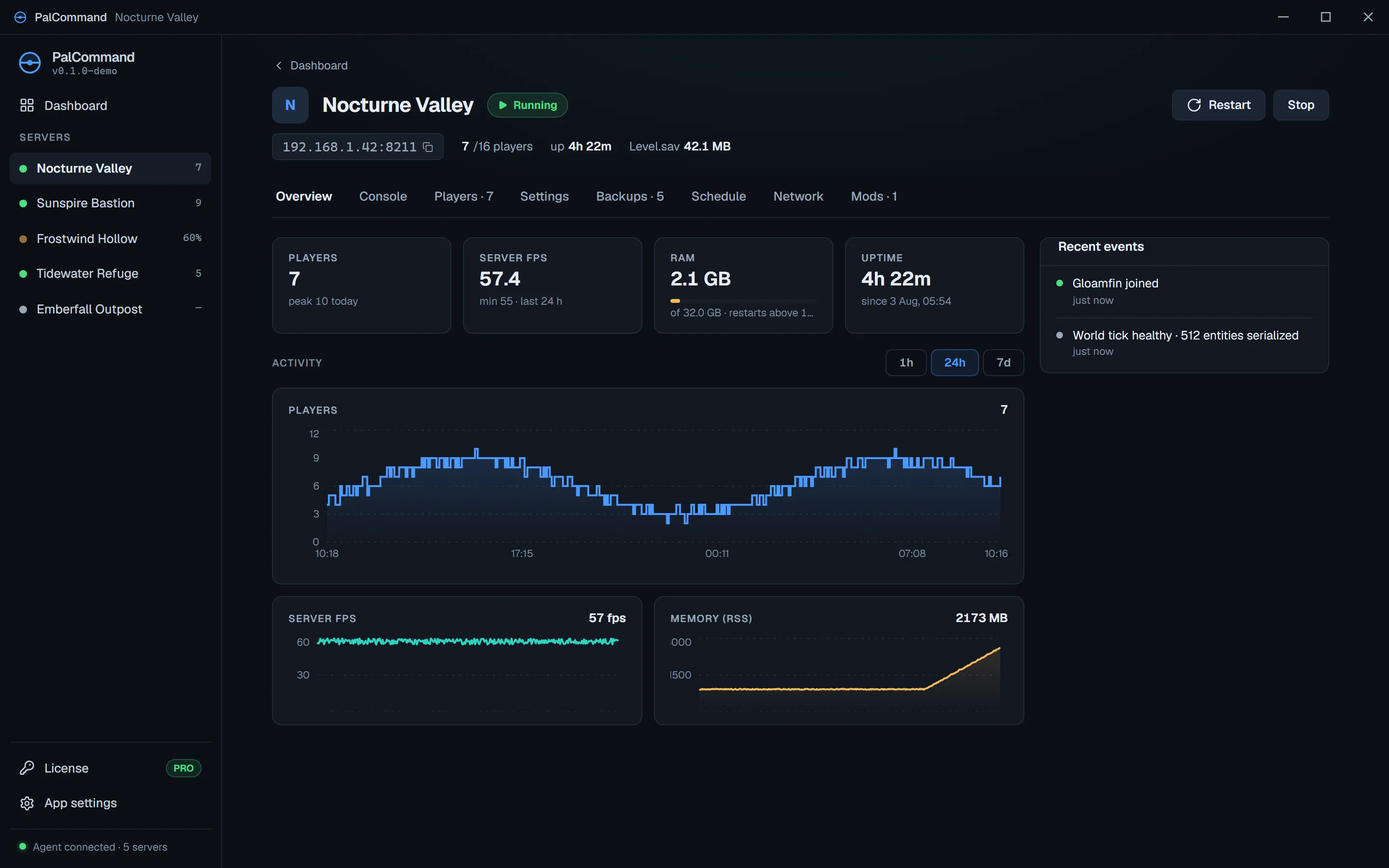
Player count, FPS, memory, uptime, console output, settings, and mods stay attached to the server they belong to.
01Console and playersWatch server events, broadcast to players, and manage the people connected now.+
Palworld’s Windows server exposes runtime output without retaining it as a conventional log file. PalCommand captures that output as a scrolling, colour-tagged feed. Filter to warnings, copy whatever the filter is showing, save the world, or broadcast a line to everyone connected.
In-game chat is written to a separate Palworld log. PalCommand stores that file but does not currently parse chat messages from it.
The Players tab lists who is online with their level, ping and session length, and lets you kick or ban. A completed ban shows a toast with an undo that unbans immediately. The banned list only knows about bans made through PalCommand: one applied by another tool or an in-game admin command will not appear in it.
02Reviewed settings with atomic writesReview exact changes before PalCommand writes the server configuration.+
PalWorldSettings.ini is two lines: a section header, and one enormous OptionSettings line
holding every key the server reads. Malform it in any way and the server silently discards all of
your settings and boots on defaults. There is no error message, and nothing on screen looks wrong
until you notice the rates are back where they started.
So PalCommand writes that file carefully. It serialises the file, re-parses what it just produced and compares it structurally against what it meant to write, swaps it into place atomically, and keeps the previous file alongside it. Keys it does not recognise are round-tripped exactly as found rather than dropped.
The Settings tab covers the 119 keys in PalCommand’s catalog, grouped into six sections and searchable by key name and by description. Nothing is sent while you type. Edits collect in a save bar, and Review and apply lists exactly which keys changed, old value struck through, new value beside it, before a single byte is written. Only the keys you actually changed are sent to the server.
03ModsInstall PalDefender, check its version, or reinstall the latest release from one server view.+
PalCommand includes an install workflow for PalDefender, a third-party Windows server-administration tool. It can also uninstall PalDefender from the selected server.
The status card says whether it is installed and, when PalCommand performed the install itself, whether it is current. If PalCommand cannot establish the installed version, the card shows Unknown and offers to reinstall the latest release.
The available-versions list shows everything the author has published, but only the newest release
carrying a downloadable asset can be installed from it. Older builds go through install from zip,
with an archive you already have. PalCommand shows you where Config.json and Banlist.json live
and does not edit them in the app.
03AUTOMATE
Run updates through six visible stages.
Choose manual or scheduled updates, restarts, backups, announcements, memory thresholds, and Discord alerts.
01Patch dayDrain players, save, snapshot, update, verify, and restart while showing the current stage.+
Palworld ships hotfixes often and enforces strict client and server version lockstep. When a patch lands, your server is down until it is patched too.
PalCommand compares the build id recorded in your install against what Steam is currently publishing, so it knows a patch exists before your players tell you. Then it tells you. Installing is your call: the default policy is manual, and every dispatch confirms first.
When you do dispatch one, the server is drained rather than killed. It announces to whoever is online, saves the world, asks the server to shut down and waits for it to actually exit, snapshots the save and the config, updates through SteamCMD, verifies the new build, and relaunches.
Dispatch across the whole fleet and busy or crash-looping servers are skipped rather than forced. The confirmation counts what was actually sent, so you read “Update dispatched for 3 of 5 servers” instead of a claim that all five went. During the install itself the card shows a plain progress sweep, because there is no honest percentage to report.
02Scheduled maintenanceSchedule backups, announcements, restarts, and updates in UTC, or run a task immediately.+
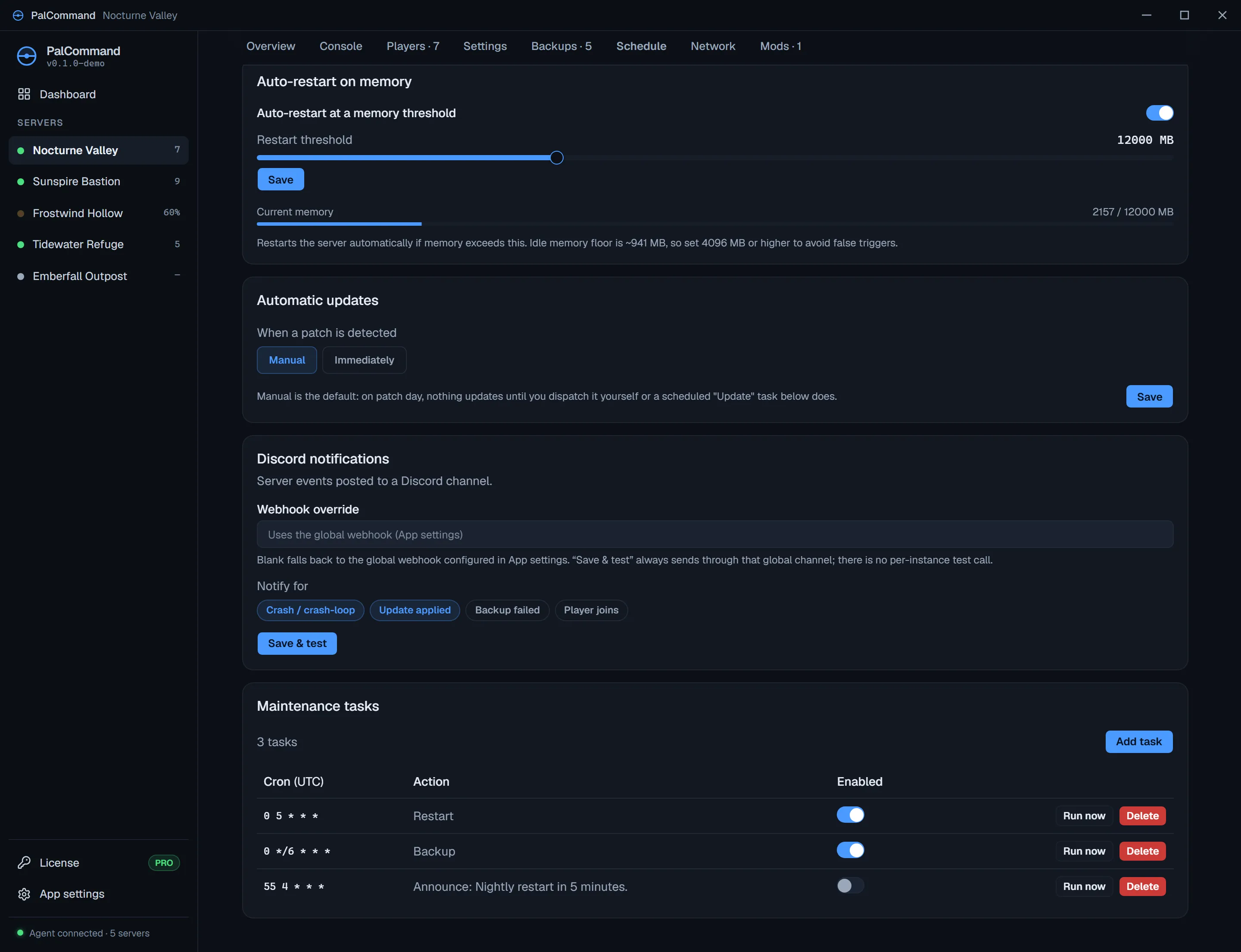
Schedule restarts, backups, updates, or announcements with cron expressions. Presets cover daily restarts, six-hour restarts, daily backups, and hourly announcements; custom tasks accept your own expression. All schedules use UTC, which is shown in the table.
Each task can be enabled, run immediately, or deleted, so you can test a new schedule without waiting for its first trigger.
Restart and stop require confirmation. If players are connected, the dialog shows how many, and they receive a 60-second countdown before the action runs.
03The memory watchdogRestart a server when resident memory crosses a threshold you set.+
PalCommand samples each server’s resident memory and restarts it when it crosses a threshold you set. The configurable range is 2 GB to 32 GB. Watch the server’s normal usage before choosing a threshold for its player load, world activity, and mods.
The card plots current memory against the threshold so you can tune it from observed usage.
04Discord notificationsChoose which crashes, updates, backup failures, and player joins post to Discord.+
A webhook per server, falling back to a global one if you leave it blank, plus toggles for which events post: crash and crash-loop, update applied, backup failed, player joins.
Save and test always sends through the global channel, because there is no way to test a per-server override on its own. The card tells you that rather than letting you assume the test proved something it did not.
04RECOVER
Verify backups before you restore.
PalCommand checks the archive, protects the current world, and verifies the restored files before restart.
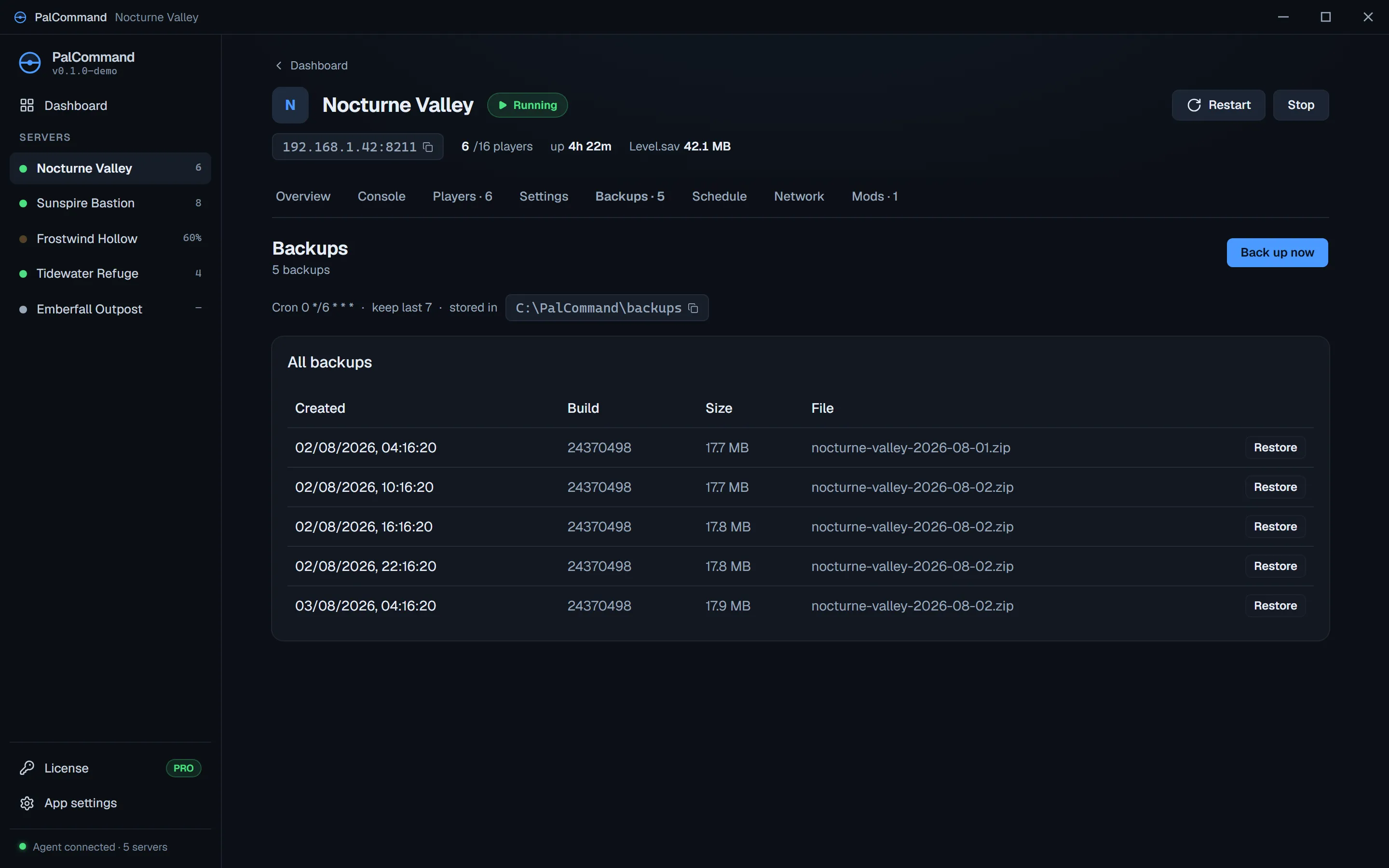
01Verified backups and guarded restoresSave before archiving, verify the archive, and snapshot the current world before restoring.+
Back up now saves the world first, then archives it. If that save fails, the backup is aborted and reported as failed. PalCommand does not archive a world it could not flush, and it does not let a bad new archive rotate out an older good one.
A restore stops the server if it was running, snapshots the world that is there now so the restore is not a one-way trip, unpacks the archive, and verifies the restored files against it before anything starts back up. The report says how many files were verified, the world’s id, and where the previous world was moved to. If the stop failed, it is never paired with a start.
Restore refuses an archive taken from a different server, or one whose world does not match what is on this server today. There is no override for that.
Rotation only counts and deletes archives PalCommand itself wrote for this server. An archive you dropped in by hand, one left behind by a server you deleted, or one written by an older version is left alone, because PalCommand cannot vouch that it belongs to the server running now.
Keep copies of your own somewhere else as well. This is a backup tool running on the same machine, and the same disk, as the thing it is backing up.
02Local data and explicit network accessServer files stay local; every optional network request is documented.+
The interface content-security policy restricts connections to PalCommand’s local channel. Outbound requests are made by backend features and listed in the privacy policy. Crash reports and usage analytics are both off unless you turn them on.
Read the privacy policy for the detail.
03Account and billingAccount shows verified subscription, Safety Mode, and three-device activation state.+
PalCommand starts with one card-required fourteen-day trial. Account shows the selected monthly (US$5.99/mo), annual (US$39.99/yr) or one-time Lifetime (US$119.99) price, the exact first charge date, and a countdown. Subscriptions renew automatically unless cancelled online before that date; the one-time Lifetime purchase never renews.
A failed charge enters Safety Mode. PalCommand does not stop, restart, delete, or alter a running server, and every install, world, backup, and setting remains on the operator’s machine.
One subscription supports up to three active Windows devices. Old devices can be revoked from Account to free a slot; subscription and device state always comes from the verified service.
Product walkthrough
See each workflow before you install.
Browse the dashboard and the exact screens used for migration, updates, backup history, and settings review.
Check Windows release